

Test Page for Security
This is a test to see if the include page macro renders content
Test page 2
This is a test to see if the include page macro renders content
This is some text.
-
This is more text.
-
This is even more cool stuff.
This is the work around for no ability to insert macros into numbered lists.
|
1 |
Insert the FabGuard Explorer CD in the computer’s CD drive. |
|
2 |
Open the root folder and locate: FabGuard_EX_Single_Installer.exe for single sensor software FabGuard_EX_Multi_Installer.exe for multi sensor software |
|
3 |
Move installer.exe file to a location on the C:\ drive of the computer. |
|
4 |
Double click the C:\ drive installer.exe file to begin installation. |
|
5 |
Specify the ParentPath of the installation directory. The default parent path is C:. For a ParentPath that is not the default, the installer creates a Directory Junction named C:\Inficon that will point to the ParentPath\Inficon location and will install the program to the Directory Junction. Click Next to continue. 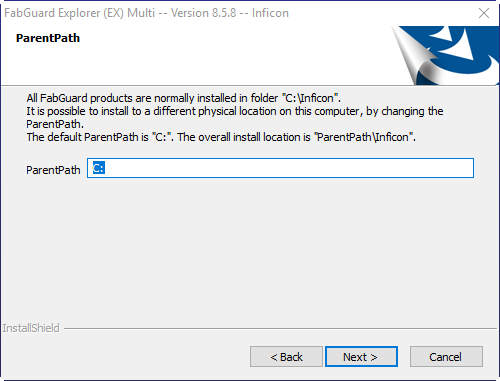
|
|
6 |
The InstallShield Wizard will open. Click Next to continue. This has a variable that says it’s EN 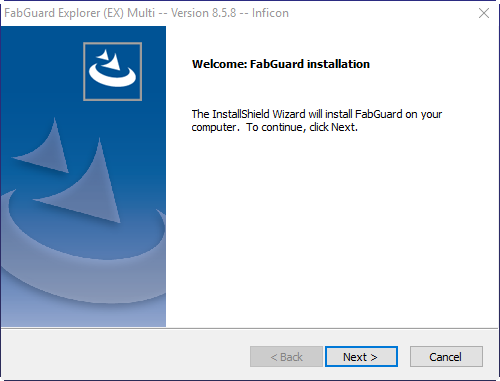
This has a variable that says it’s JP
This has a variable that says it FR
|
|
7 |
Read the License Agreement. If the license agreement terms are acceptable, click Yes to continue. 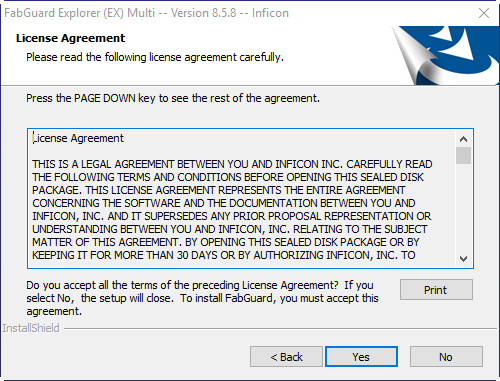
|
|
8 |
Select the sensor drivers to install. Click Next to continue.
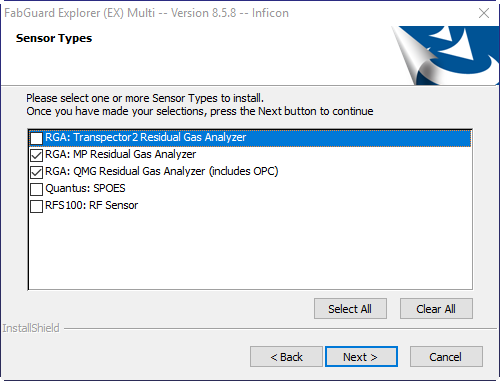
|
|
9 |
Enter a user name and company. Click Next to install FabGuard Explorer. 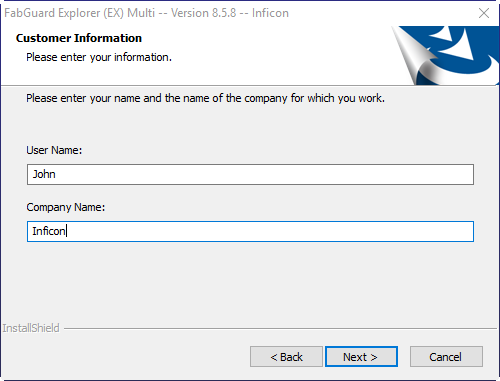
|
|
10 |
When installing a Quantus driver, a message provides information regarding the Quantus USB connection will display. Click OK to continue. 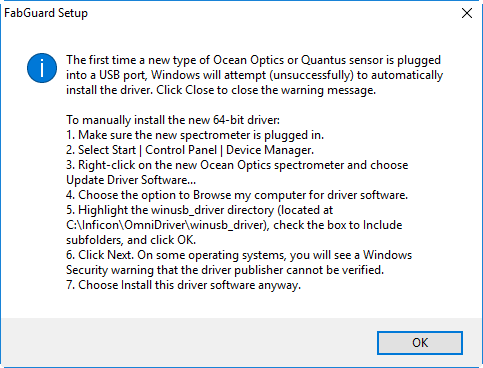
|
|
11 |
FabGuard will ask to modify Windows variables. Click OK to continue. 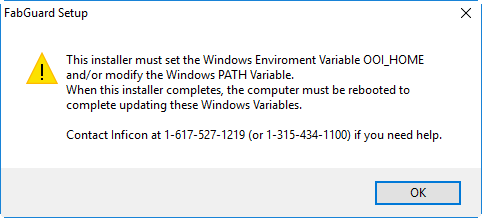
|
|
12 |
When installation is complete, reboot the computer and place the FabGuard Explorer CD in a safe storage area. |

Numbered Lists workaround: Can’t add macros within a numbered or bulleted list.
Test is to add Excerpt include macro within a numbered list.
-
This is the first instruction.
-
This is the second instruction.
-
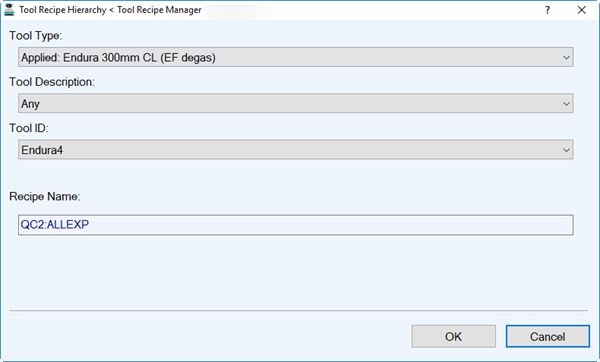
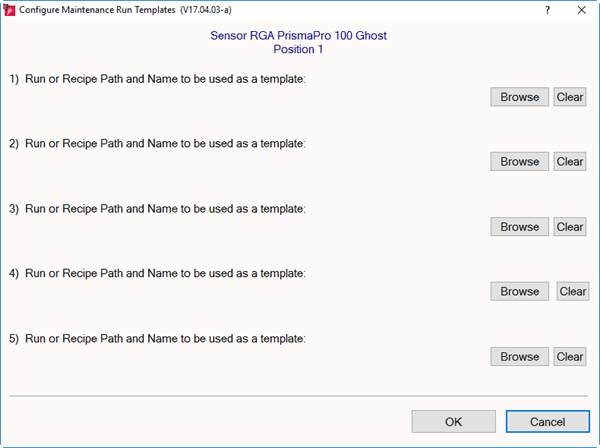
This is the third instruction where I just pasted an image.
-
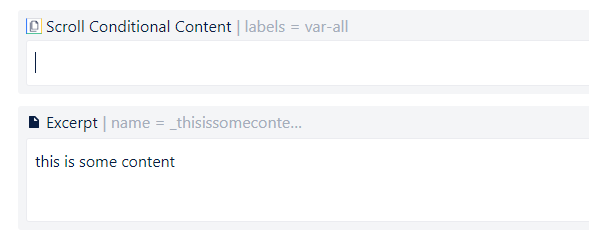
This is the fourth instruction with a test of doing an include page macro within an excerpt macro
-
blah
-
some more blah